Backup & Restore
Your data is local. AllMy Ledger stores everything on your computer. We don't have access to your data and can't recover lost files. Backups are your responsibility.
Where Your Data Is Stored
Each company is stored as a .ledger file (a SQLite database) inside a company folder. Default locations by platform:
- Windows:
%LOCALAPPDATA%\AllMyLedger\companies\ - macOS:
~/Library/Application Support/AllMyLedger/companies/ - Linux:
~/.local/share/AllMyLedger/companies/
Each company folder contains the .ledger file, an attachments/ folder for file attachments, and a backups/ folder.
Auto-Backup
AllMy Ledger automatically creates a backup every time you close a company file. These backups are stored in the backups/ folder inside your company directory as timestamped ZIP files.
By default, AllMy Ledger keeps the last 20 backups. Older ones are automatically deleted. You can change the retention count in Settings.
Manual Backup
To create a backup on demand:
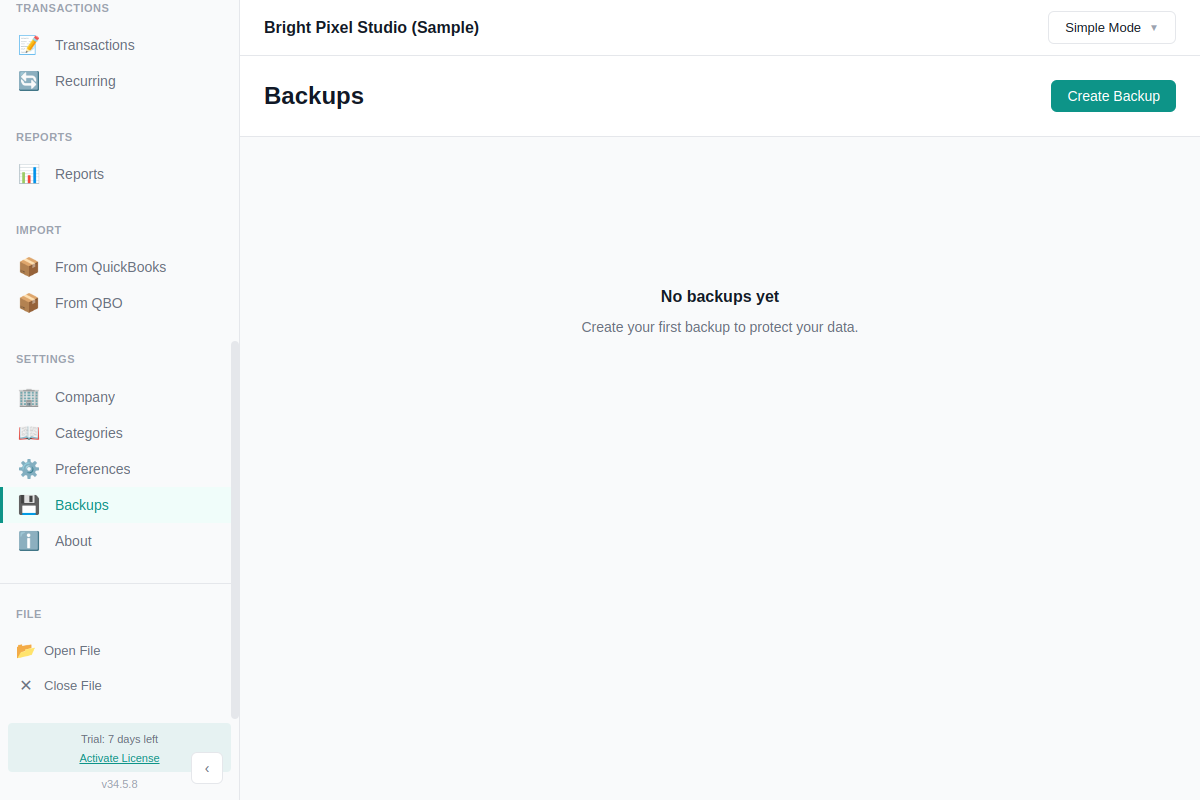
- Go to Settings → Backups in the sidebar
- Click Create Backup
The backup appears in the list with a "Manual" badge. Manual backups follow the same retention policy as auto-backups.
What's in a Backup
Each backup is a ZIP archive containing:
- Your
.ledgerfile (all accounts, transactions, contacts, reports data) - Your
attachments/folder (any files attached to invoices, bills, or expenses)
The database is checkpointed before backup to ensure a clean, consistent copy.
Restoring from Backup
From the Backups page, click the Restore button on any backup. You'll have two options:
- Overwrite current data — replaces your current company file and attachments with the backup
- Create new company from backup — restores as a separate company with a new name, leaving your current data untouched
After restoring, AllMy Ledger reopens with the restored data.
Remote Backup Folder
You can set a remote backup folder in Preferences (e.g., a Dropbox, OneDrive, or Google Drive sync folder). When configured, every backup is also copied to that location automatically. This gives you offsite protection without any extra steps.
If the remote copy fails (drive disconnected, folder not available), the local backup still completes normally.
Best Practices
- Set a remote backup folder. Point it at a cloud sync folder for automatic offsite copies.
- Test your backups. Restore one to a new company name occasionally to make sure it works.
- Create a manual backup before big changes. Before a major import or end-of-year adjustments, click Create Backup first.
- Keep copies in at least 2 places. Local + cloud is a good combination.