Installation
AllMy Ledger runs on Windows, macOS, and Linux. Installation takes a few minutes on any platform.
System Requirements
Windows
- Operating system: Windows 10 (version 1903 or later) or Windows 11
- RAM: 4 GB minimum, 8 GB recommended
- Disk space: 200 MB
- Display: 1280 x 720 minimum, 1920 x 1080 recommended
macOS
- Operating system: macOS 11 (Big Sur) or later
- Processor: Apple Silicon (M1+) or Intel
- RAM: 4 GB minimum
- Disk space: 200 MB
Linux
- Architecture: x86_64 (64-bit Intel/AMD)
- glibc: 2.31 or newer (any distro from ~2020 or later)
- RAM: 4 GB minimum
- Disk space: 200 MB
Internet is required for installation only. After that, AllMy Ledger works entirely offline.
Windows — Direct Download
- Download the installer from the AllMy Ledger download page
- Run the setup .exe file
- Follow the installation prompts
- Launch AllMy Ledger from the Start Menu or desktop shortcut
Windows — Microsoft Store
- Open the Microsoft Store on your computer
- Search for AllMy Ledger
- Click Install (or Free Trial to try it first)
- Wait for the download and installation to complete
- Click Open to launch AllMy Ledger
macOS
- Download the .dmg from the AllMy Ledger download page
- Open the .dmg file
- Drag AllMy Ledger to your Applications folder
- Launch from Applications or Spotlight
First launch: macOS may show a warning that the app is from an unidentified developer. Right-click the app, choose Open, then click Open again to confirm. You only need to do this once.
Linux — AppImage
AllMy Ledger is distributed as an AppImage, which runs on most Linux distributions without installation.
- Download the AppImage from the AllMy Ledger download page
- Make it executable:
chmod +x AllMyLedger*.AppImage - Double-click the file or run it from a terminal
Ubuntu 22.04+: AppImage requires FUSE, which is no longer installed by default. Install it with sudo apt install libfuse2 before running the AppImage.
Free Trial
AllMy Ledger includes a 7-day free trial with all features — no restrictions, no credit card required. After 7 days, you'll need to purchase a license to keep using the software.
First Launch
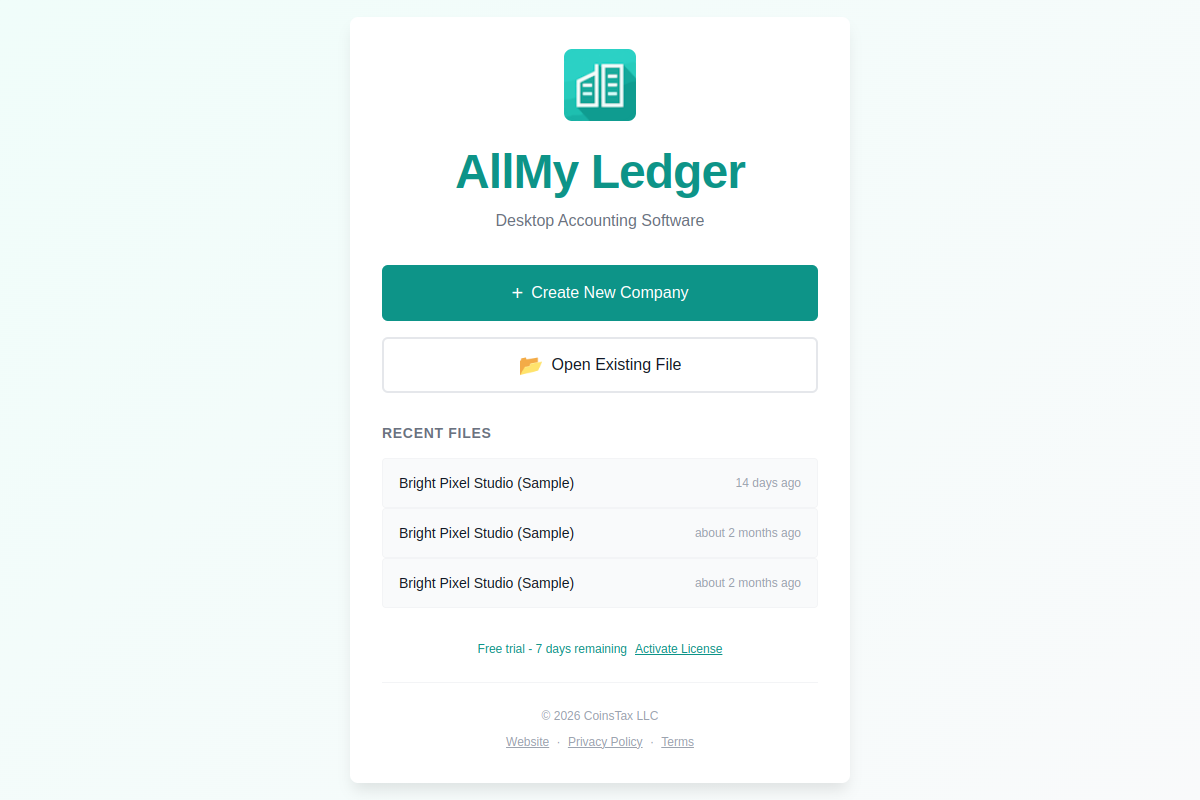
When you open AllMy Ledger for the first time, you'll see a welcome screen. Click Create New Company to get started. You'll need to fill in three things:
- Company name — your business or organization name
- Fiscal year start month — January for most businesses
- Accounting method — Cash or Accrual
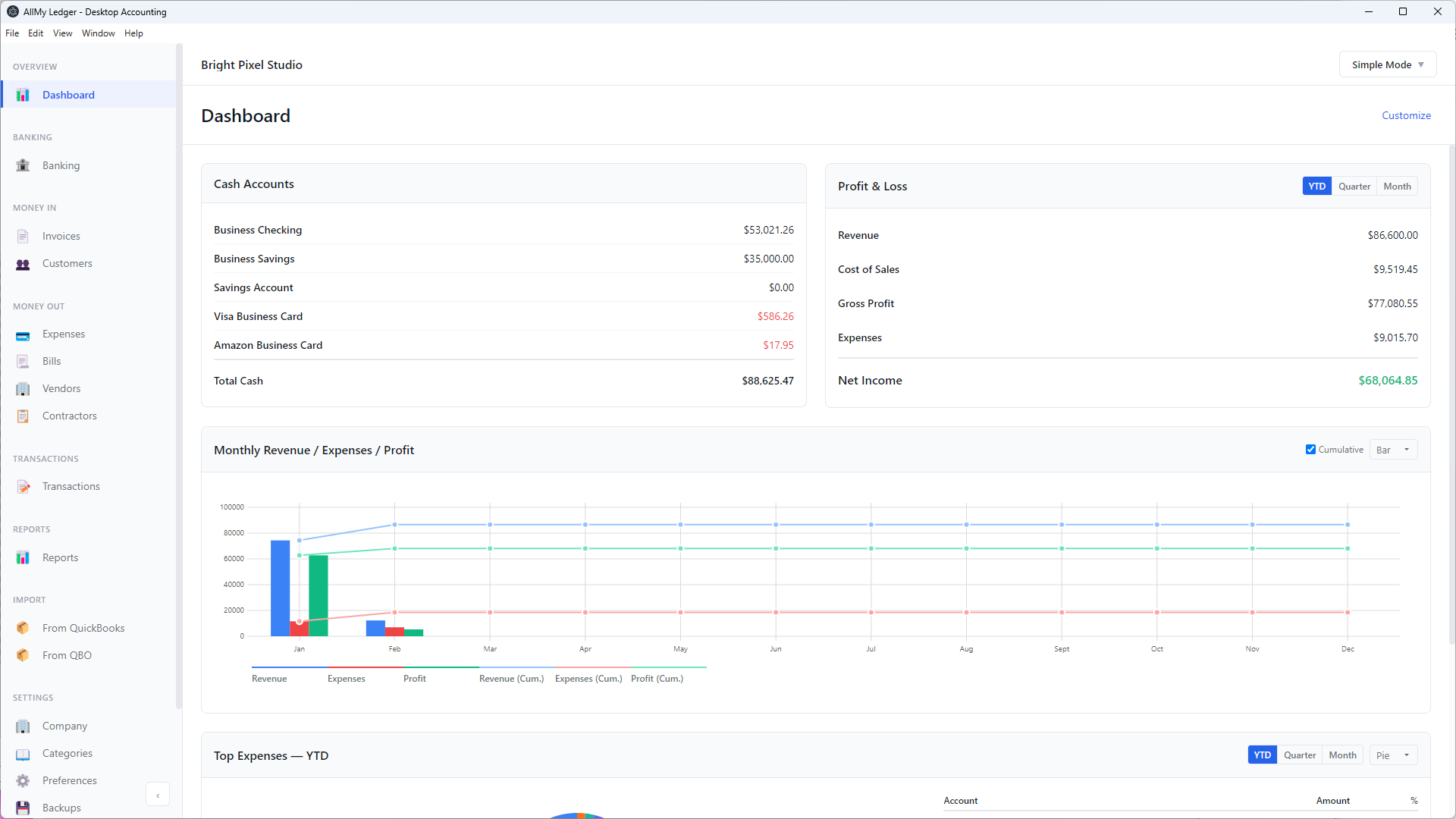
That's it. AllMy Ledger creates your company file with a default chart of accounts and drops you on the dashboard, ready to go.
No internet after install. Once installed, AllMy Ledger works entirely offline. Your data stays on your computer and is never sent to our servers.